Creating a forwardable CV
A forwardable CV is a clean PDF version of a candidate's profile that you can send to a client or a hiring manager. The candidate's contact details are left out automatically.
Before you start
The profile must be complete. If details are missing, you will see "Fill in the missing fields before creating a template". Edit the profile first.
Creating a forwardable CV needs a recruiter account. If generating the PDF fails with a permission message, ask your administrator.
Create it
- Open the candidate's profile.
- Select Create Template. The Create Forwardable CV form opens, filled in from the profile.
- Review and adjust the details. Changes you make here affect only this PDF. They do not change the candidate's profile.
- Choose a template style to generate and download the PDF.
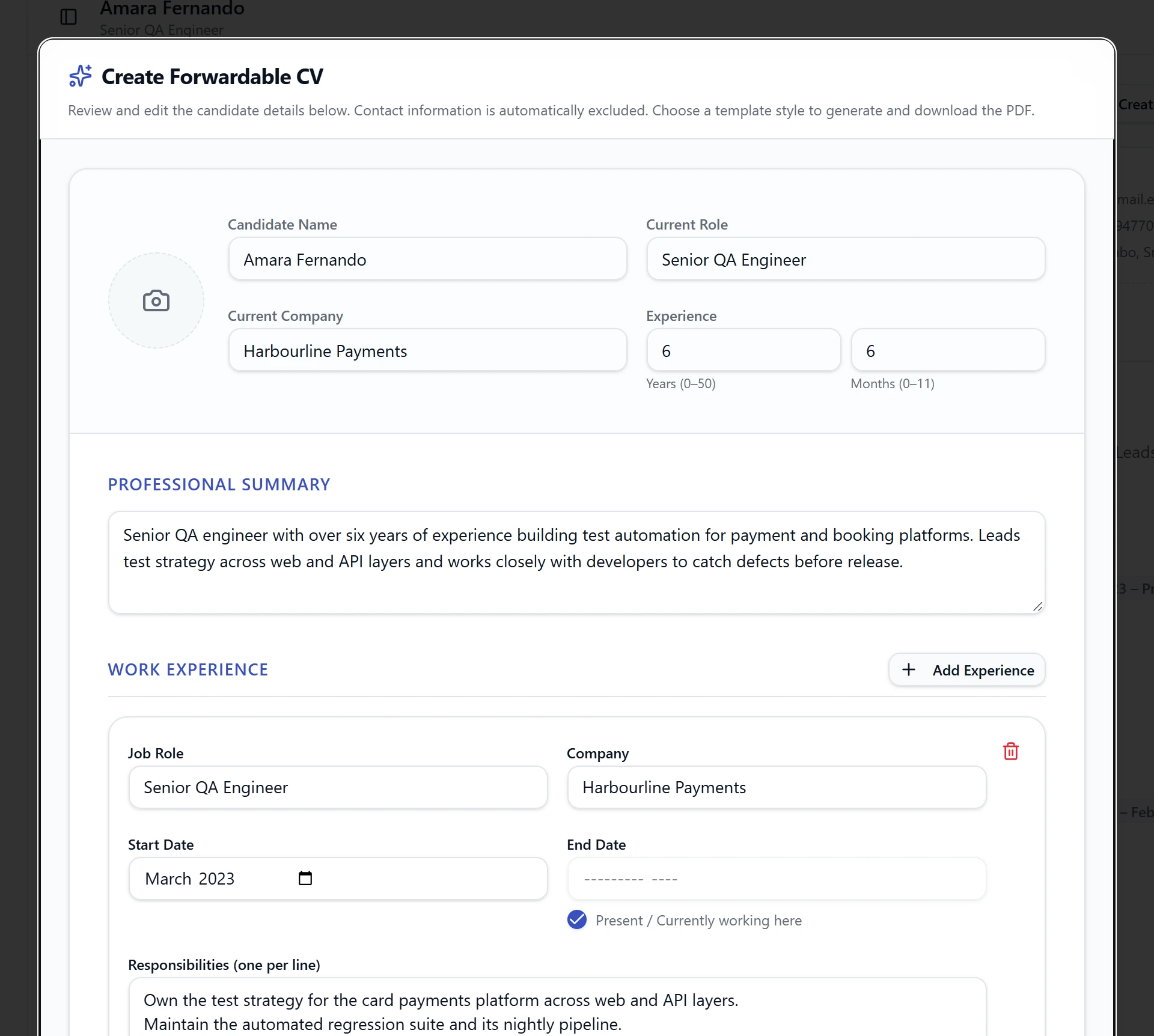
What you can adjust
| Section | Notes |
|---|---|
| Photo | Optional. Upload a photo and crop it |
| Name and title | Shown at the top of the CV |
| Experience | Total experience in years and months |
| Work experience | Dates use a month picker. Tick the "present" option for a current role |
| Education | Degree, institution, start and end year |
| Skills, projects, certifications | Edit, add or remove entries |
| Languages | See below |
Languages
Each language has a name and a level.
- Language is a searchable list. Start typing to find one. If the language is not listed, type its name and choose Use "…" to add it.
- Proficiency is one of Native, Fluent, Advanced, Intermediate or Basic. Choose Not specified if the CV does not say.
The same language cannot be added twice.
What is left out
The forwardable CV never includes the candidate's email address, phone number, links to their online profiles, or their references. This is done for you, whatever is in the form.
How dates appear
Dates are written out, for example "Jan 2025 – Present" or "Mar 2022 – Feb 2025". Where the CV gave only years, only years are shown.
Templates
Two template styles are available, each with its own Generate button at the bottom of the form. Both produce the same content in a different layout. Generate both and choose the one that suits the recipient.